
Note: Kaggle has a Python package, kagglehub with it’s dataset_upload function, and recently updated their API docs to suggest using that instead. I have not tested this approach yet and still use the approach outlined in this article for now.
I maintain a few datasets on Kaggle. A few of them are generated from APIs and other models, so I wanted to automate their updates (Kaggle refers to this as creating a new version) using some recurring Python data pipelines so they get updated a little more regularly than whenever I remember to update them.
I decided to look into the Kaggle API and found it a bit more frustrating to figure out than I expected. So, I thought I’d document the steps I took for anyone else who might want to do something similar.
Note: You’ll need a Kaggle account and Python installed to follow along.
The Kaggle API
Kaggle has a public API that you can use to search for datasets, create notebooks, submit to competitions, and more. The primary use I found for it is to automate updating the datasets I maintain in Kaggle.
The recommended way to use the API is through their Python package. You can install the Python package (which includes a CLI tool too) using pip: pip install kaggle.
Getting Your Access Token and Configuring the API
According to their documentation, generating the token should create a kaggle.json file for you to download, and the recommended approach is to save this kaggle.json file in ~/.kaggle/kaggle.json (or C:\Users\
However, when generating the token, it instead provides a token and says to use an ENV variable. This is the approach I used.
Before you can start, you need to get your access token from Kaggle. First, go to your Kaggle settings, switch to the “Account” tab, and scroll down to the “API” section.
Then, click the “Generate New Token” button within the “API Tokens (Recommended)” section. Fill in the token name and click “Generate”.
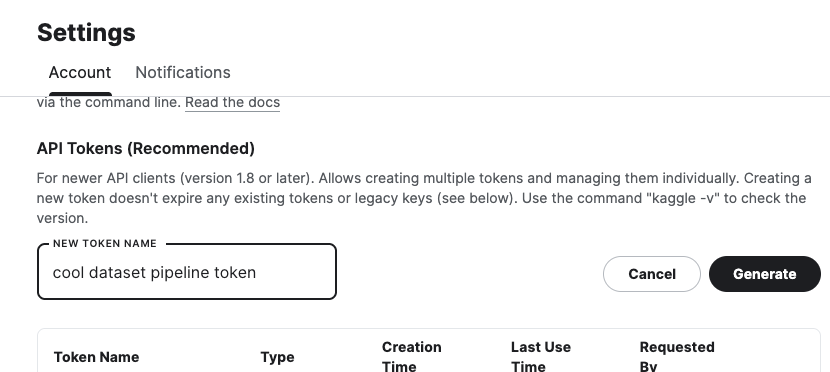
This will generate your token and open a modal with the token value. Set this token as an ENV variable named KAGGLE_API_TOKEN.
Now, in your Python code, add the import statement:
import kaggle
If you have correctly set your token in the ENV variable, this should import without any errors.
Note: In the source code, I see where there is a check for the ENV variable and, if that fails, it calls an _authenticate_with_oauth_creds function, that uses the KaggleCredentials class, which appears to look for a ~/.kaggle/credentials.json file. I have not tested this approach.
Creating Dataset Metadata JSON
In order to update your dataset on Kaggle, it requires you to have a JSON file with the dataset metadata. This JSON should include either dataset ID or slug (or both) as well as some other fields.
They have a GitHub wiki page for how the metadata needs to be formatted that you can refer to, but the gist is that it should be a JSON file with the following fields:
id: The dataset slugid_no: The dataset IDsubtitle: A short description of the datasetdescription: A longer description of the dataset
So, something like this saved into a file called dataset-metadata.json:
{
    "id": "frankcorso/fake-dataset",
    "id_no": 123456789,
    "subtitle": "An example dataset that does not exist",
    "description": "A long description of the dataset that will be used on the dataset page. Will replace the existing one."
}
Since you already have the dataset in Kaggle, you will likely want to keep most of the metadata the same. The API has a function for downloading the existing metadata, but it is formatted differently from what the update function requires.
The API will expect the metadata and the data files to be in the same folder. So, in the following Python code, we make sure the folder exists, download the existing metadata, and then create the new metadata in the expected format.
import os
import json

# Your data can be anywhere as long as it's in a folder that contains both the JSON file and data files when you go to upload.
DATASET_DIR_PATH = '/your-path/datasets/your-dataset-folder'

# Create a local folder for dataset if it doesn't exist.
if not os.path.exists(DATASET_DIR_PATH):
    os.mkdir(DATASET_DIR_PATH)

# Download existing metadata from Kaggle.
kaggle.api.dataset_metadata('frankcorso/fake-dataset', path=DATASET_DIR_PATH)

# Load the existing metadata JSON into a dictionary.
with open(f"{DATASET_DIR_PATH}/dataset-metadata.json", 'r') as f:
    existing_metadata_json = f.read()
existing_metadata = json.loads(existing_metadata_json)

# Create metadata for the version in the format the API needs. For some reason, Kaggle API downloads existing metadata in a different format.
new_metadata = {
    'id': existing_metadata['info']['datasetSlug'],
    'id_no': existing_metadata['info']['datasetId'],
    'subtitle': existing_metadata['info']['subtitle'],
    'description': existing_metadata['info']['description'],
    # You can also use `keywords` and `resources` but those aren't required. See their wiki page: https://github.com/Kaggle/kaggle-api/wiki/Dataset-Metadata
}
with open(f"{DATASET_DIR_PATH}/dataset-metadata.json", 'w') as f:
    f.write(json.dumps(new_metadata))
Uploading Data
Now, you will want to save or move your data into the same folder as the metadata JSON file. For example, if you have a pandas DataFrame, you would use something like:
# Create our new version of the dataset.
members_df = pd.DataFrame(example_data)
members_df.to_csv(f"{DATASET_DIR_PATH}/fake-data.csv", index=False)
Lastly, you can use the API to upload the new version of the dataset using the following Python code:
# Upload to Kaggle. The path will be the folder that contains the metadata and data files.
kaggle.api.dataset_create_version(DATASET_DIR_PATH, version_notes='Some notes about this version.')
If you go to your dataset in Kaggle, you should see the new version. You can click on the version in the Data Explorer to see all versions and the version notes you entered.
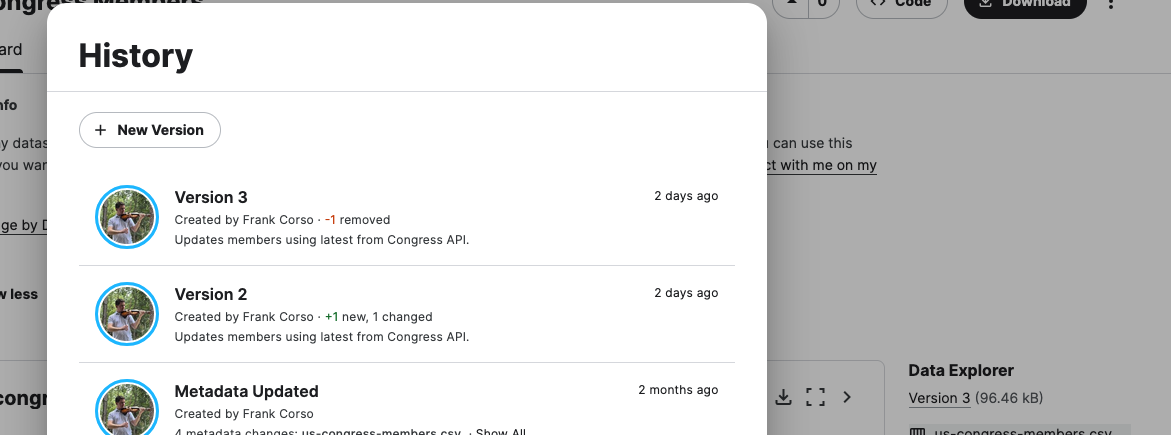
You now have a fully automated way to update your datasets in Kaggle!
Next Steps
Now that you have a way to update your datasets automatically, you can use this approach in your data pipelines or within Airflow DAGs to keep your datasets up to date.